
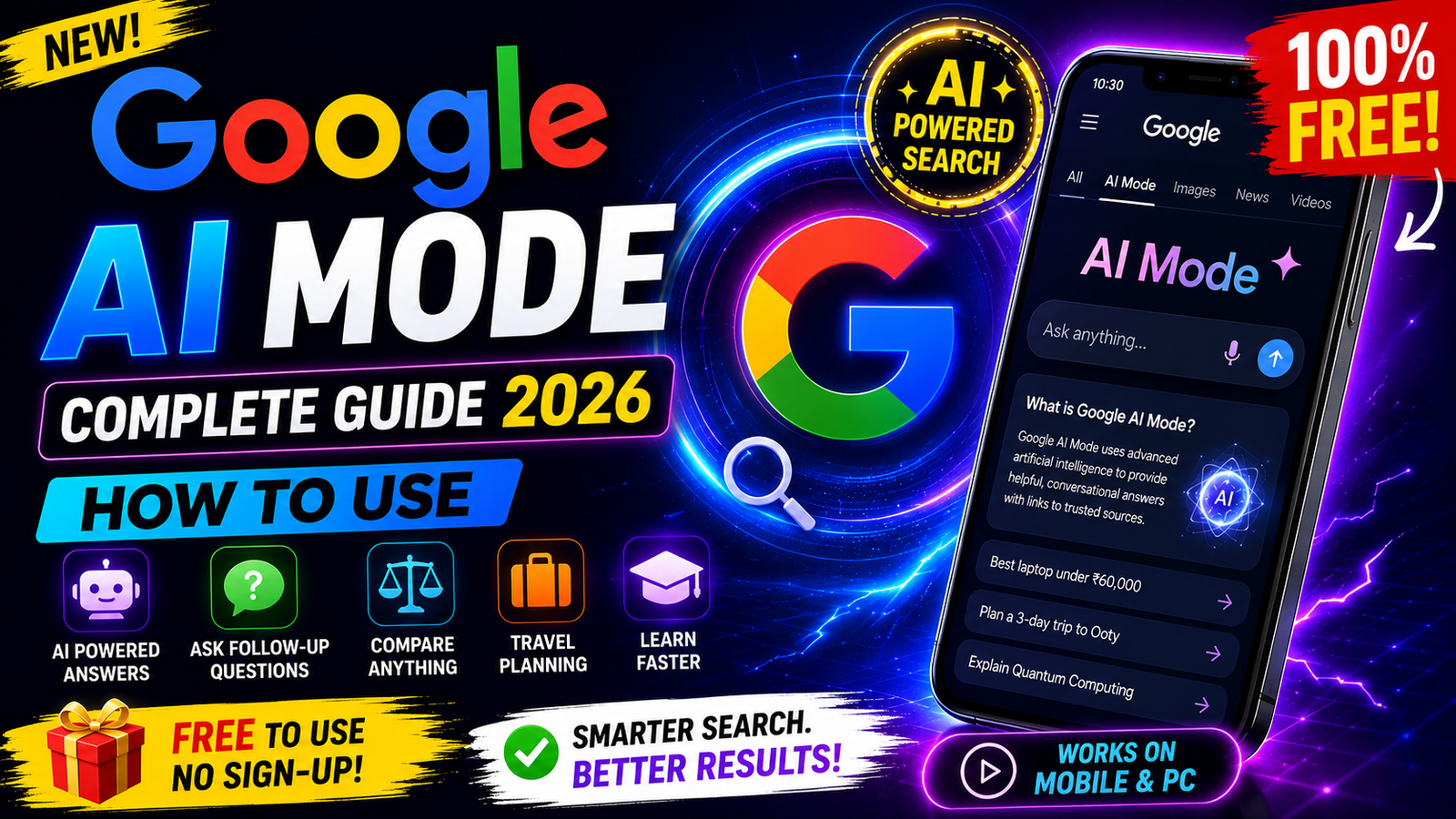
Google AI Mode Explained: Everything You Need to Know
Artificial Intelligence is transforming the way we search online. Instead of displaying only a list of websites, Google now uses AI to provide direct, detailed, and conversational answers. This new experience is called Google AI Mode.
With Google AI Mode, you can ask complex questions in natural language and receive well-organised answers that combine information from multiple trusted sources.
For example, instead of searching:
“Best smartphone under ₹30,000”
you can ask:
“Which smartphone under ₹30,000 has the best camera and battery life for gaming?”
Google AI Mode understands your complete question and provides a detailed comparison, buying suggestions, and links to relevant sources.
What is Google AI Mode?
Google AI Mode is an AI-powered search experience that helps users find information faster by generating intelligent summaries, answering follow-up questions, comparing products, explaining complex topics, and providing more personalised search results.
Unlike traditional Google Search, AI Mode works more like a conversation.
Key Features of Google AI Mode
- AI-generated answers for complex questions
- Natural conversation with follow-up questions
- Quick summaries from multiple trusted sources
- Product comparisons
- Travel planning assistance
- Learning support for students
- Coding and programming help
- Research assistance
- Smart shopping recommendations
- Easy-to-understand explanations
How to Use Google AI Mode on Android & iPhone
Step 1: Update the Google App
Update the Google app to the latest version before using AI Mode.
Android: Download or update the Google app from Google Play:
https://play.google.com/store/apps/details?id=com.google.android.googlequicksearchbox
iPhone: Download or update the Google app from the Apple App Store:
https://apps.apple.com/app/google/id284815942
Step 2: Sign in to Your Google Account
Sign in with your Google Account to access AI-powered search features.
Google Account Sign-in:
https://accounts.google.com/
Step 3: Open Google Search
Launch the Google app or visit Google Search in your browser.
Google Search:
https://www.google.com/
Step 4: Open Google AI Mode
If Google AI Mode is available for your account, tap AI Mode in Search and start asking questions naturally.
If AI Mode is not yet available in your region, you can learn more about Google’s AI Search experience here:
You can also explore Google’s experimental AI features through Search Labs:
Step 5: Ask Questions Naturally
You can ask questions like:
- Explain Quantum Computing in simple words.
- Plan a 3-day trip to Ooty.
- Compare iPhone 17 vs Samsung Galaxy S26.
- Best laptop for video editing under ₹80,000.
Google AI Mode will generate an AI-powered answer with helpful summaries and, where available, links to supporting sources.
How to Use Google AI Mode on PC
- Open https://www.google.com/
- Sign in at https://accounts.google.com/
- If AI Mode is available, select it.
- Type your question naturally.
- Read the AI-generated answer and explore the cited sources for more information.
Best Uses of Google AI Mode
Google AI Mode can help with:
- Homework and education
- Travel planning
- Shopping advice
- Technology learning
- Government scheme research
- Business ideas
- Content writing
- Programming
- Career guidance
- General knowledge
Learn More from Google
- Google AI: https://ai.google/
- Google Labs: https://labs.google/
- Google Blog: https://blog.google/
Note: Google AI Mode is rolling out gradually. Some features may not yet be available in every country or for every Google account.
Advanced Features of Google AI Mode
Google AI Mode is much more than a chatbot. It is designed to help users search, compare, analyse, and understand information faster.
1. AI-Powered Search Summaries
Instead of opening multiple websites, Google AI Mode provides a concise summary from various trusted sources.
Learn more:
https://search.google/ways-to-search/ai-mode/
2. Ask Follow-up Questions
You don’t have to start a new search every time.
Example:
Question: Best laptop under ₹60,000?
Follow-up: Which one is best for video editing?
The conversation continues naturally, making research much faster.
3. Product Comparison
Compare products such as smartphones, laptops, cameras, smartwatches, and accessories within seconds.
Example:
- Samsung Galaxy S26 vs iPhone 17
- OnePlus 15 vs Google Pixel
- MacBook Air vs MacBook Pro
Google AI Mode highlights key differences, specifications, pricing, and buying recommendations.
4. Travel Planning
Planning a trip becomes much easier with AI Mode.
Example searches:
- Plan a 5-day trip to Kerala
- Best places to visit in Ooty
- Budget-friendly Goa itinerary
Google may suggest places to visit, estimated travel plans, and useful recommendations.
5. Learning Made Easy
Students can use Google AI Mode to simplify difficult topics.
Examples:
- Explain Artificial Intelligence
- Learn Python for beginners
- What is Quantum Computing?
- Explain Photosynthesis in simple words
6. Coding Assistance
Developers can ask programming questions and receive explanations, sample code, debugging suggestions, and best practices.
Supported topics include:
- HTML
- CSS
- JavaScript
- Python
- Java
- C++
- SQL
Google Developers:
https://developers.google.com/
Tips to Get Better Results
Use complete and specific questions instead of single keywords.
Example:
❌ Weather Chennai
✅ Will it rain in Chennai this weekend?
❌ Best phone
✅ Best camera phone under ₹40,000 for photography
❌ Laptop
✅ Best laptop for engineering students under ₹70,000
The more detailed your question is, the better the AI response is likely to be.
Advantages of Google AI Mode
✅ Faster answers
✅ Better understanding of complex topics
✅ Saves research time
✅ Easy comparisons
✅ Supports follow-up questions
✅ Helpful for students and professionals
✅ Improves productivity
Limitations
- AI-generated responses can occasionally contain mistakes.
- Always verify important information using official sources.
- Availability varies by country and Google account.
- Some experimental features may change over time.
For official Google announcements:
https://blog.google/
Frequently Asked Questions (FAQ)
Is Google AI Mode free?
Yes. Many AI-powered Search features are available at no additional cost, although feature availability depends on your region and account.
Does Google AI Mode work on mobile?
Yes. It works on Android and iPhone through the Google app when available.
Google App for Android:
https://play.google.com/store/apps/details?id=com.google.android.googlequicksearchbox
Google App for iPhone:
https://apps.apple.com/app/google/id284815942
Can I use Google AI Mode on my PC?
Yes. Visit:
Sign in with your Google Account and use AI Mode if it is available for your account.
Is Google AI Mode available in every country?
Not yet. Google is rolling it out gradually to more regions and users.
Latest updates:
https://blog.google/
Conclusion
Google AI Mode represents the next generation of online search. Instead of simply displaying links, it helps users understand information through intelligent summaries, natural conversations, and quick comparisons.
Whether you’re a student, professional, creator, or everyday user, Google AI Mode can make searching faster and more productive.
To explore the latest AI Search experience, visit:
Google AI:
https://ai.google/
Google Search:
https://www.google.com/
Google Labs:
https://labs.google/