
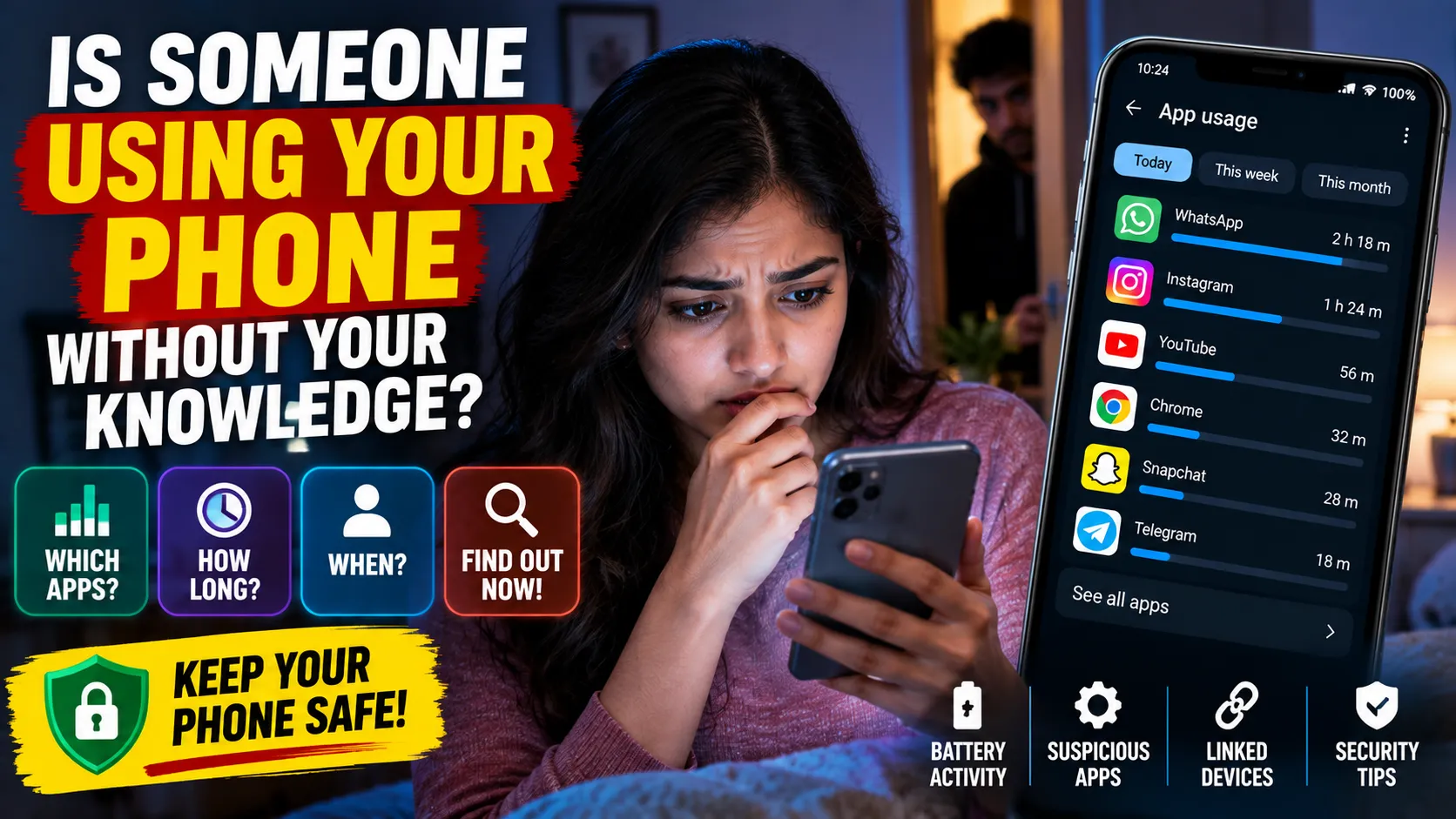
Have you ever wondered whether someone is using your smartphone when you are not around? Your phone contains private photos, WhatsApp messages, social media accounts, emails, documents, banking apps, and other personal information.
If you suspect that someone may be using your phone without your knowledge, you don’t need to install a secret spying or monitoring application. Your Android phone or iPhone already provides several useful security and usage features that can help you identify unusual activity.
In this guide, we will explain how to check which apps were used, how long they were used, screen time, battery usage, installed apps, app permissions, account activity, and WhatsApp linked devices.
Can You Find Out Who Used Your Phone?
There is an important point to understand.
Your phone can often show which apps were opened and how long they were used, but it usually cannot tell you with 100% certainty who physically used the phone.
For example, if Instagram shows 1 hour of usage, the phone can tell you that Instagram was active for approximately one hour. It cannot automatically confirm whether you or another person used it.
However, several unusual activity indicators can help you investigate.
1. Check Which Apps Were Used
One of the easiest ways to check unusual phone activity is by looking at your daily app usage.
On Android
Many Android phones include Digital Wellbeing.
Go to:
Settings → Digital Wellbeing & parental controls
Depending on your phone model, you may see a dashboard showing:
- Screen time
- Apps used
- Time spent on each app
- Number of times an app was opened
- Notifications received
- Phone unlocks
For example, if you normally use Instagram for 20–30 minutes but suddenly see several hours of usage when you were not using your phone, it may be worth investigating.
The exact menu names can vary depending on the Android version and smartphone manufacturer.
2. Check Screen Time on iPhone
iPhone users can use Apple’s built-in Screen Time feature.
Go to:
Settings → Screen Time → See All App & Website Activity
You can see information such as:
- Daily screen time
- App usage
- Website activity
- Notifications
- Device pickups
- Frequently used applications
If there is unusual activity during a period when you were away from your phone, you can investigate further.
3. Check Battery Usage
Battery usage can also provide useful clues.
On many Android phones, go to:
Settings → Battery → Battery Usage
You can see which applications have consumed battery recently.
If an application that you don’t remember using appears near the top of your battery usage list, check what the app is and why it was active.
However, battery usage alone does not prove that another person used your phone.
Some applications can run background processes even when you are not actively using them.
4. Check Your Installed Apps
Another important step is checking the applications installed on your smartphone.
Go to:
Settings → Apps → See All Apps
Look through the list carefully.
If you find an application that you don’t remember installing:
- Check the app name.
- Check the developer.
- Look at its permissions.
- Find out whether it is a system application.
- Search for information about the application before removing it.
Do not uninstall or disable system applications unless you know exactly what they do.
5. Check App Permissions
App permissions are another important part of smartphone security.
Some applications may request access to:
- Camera
- Microphone
- Location
- Contacts
- Photos and videos
- Files
- SMS
- Phone calls
On many Android phones, you can find permissions under:
Settings → Privacy → Permission Manager
Review which applications have access to sensitive information.
If an application has a permission that it doesn’t reasonably need, consider removing that permission.
For example, a simple calculator application generally should not need access to your contacts or microphone.
6. Check Accessibility Access
Android’s Accessibility features can provide powerful access to applications that have been granted permission.
If you suspect that an unfamiliar application has been installed, check:
Settings → Accessibility → Installed Apps / Downloaded Apps
The exact menu can vary by device.
If you find an unfamiliar application with Accessibility access, investigate it carefully.
Do not disable legitimate accessibility services that you actually use.
7. Use Google Play Protect
Android users can use Google Play Protect to scan applications for potentially harmful software.
Open the Google Play Store and go to:
Profile Picture → Play Protect
Then run a security scan.
It is also safer to download applications from trusted official app stores rather than installing unknown APK files from random websites.
8. Check Devices Connected to Your Google Account
Your Google Account can also help you identify unfamiliar devices.
Review the devices that are currently signed in to your Google Account.
If you see a device that you don’t recognize:
- Check the device details.
- Confirm whether it belongs to you.
- Sign out of unfamiliar devices.
- Change your password if necessary.
- Enable two-step verification.
This is an important step if you believe someone may have accessed your account.
9. Check WhatsApp Linked Devices
If you use WhatsApp, regularly check your Linked Devices section.
Open WhatsApp and go to:
Settings → Linked Devices
You may see computers or other devices linked to your WhatsApp account.
If you find a device that you don’t recognize, you can log it out.
This is especially important if you have previously used WhatsApp Web on another computer.
10. Check Your Recent Activity
Some applications maintain their own activity or login history.
For example, social media platforms and email services may provide information about:
- Recent logins
- Login locations
- Connected devices
- Active sessions
- Security alerts
If you notice an unfamiliar login or device, secure the account immediately.
11. Secure Your Phone With a Strong Lock
Prevention is better than trying to identify suspicious activity later.
Use a strong:
- PIN
- Password
- Fingerprint
- Face unlock
Avoid easily guessed PINs such as:
1234, 0000, 1111, birthdays, or simple patterns.
Never share your phone’s PIN or password unnecessarily.
12. Hide Sensitive Notifications on the Lock Screen
Even if your phone is locked, message previews may display private information.
To improve privacy, consider hiding sensitive notification content from the lock screen.
This can prevent other people from reading private WhatsApp, SMS, email, or other notifications when your phone is unattended.
13. What If You Find a Suspicious App?
Don’t panic if you discover an unfamiliar application.
First:
Step 1: Find out what the application does.
Step 2: Check who developed it.
Step 3: Review its permissions.
Step 4: Check whether it has Accessibility or other special access.
Step 5: Check its battery and data usage.
Step 6: Run a security scan.
Step 7: If it is unnecessary and safe to remove, uninstall it.
If you believe your accounts may have been compromised, change your important passwords and enable two-factor authentication.
Can a Secret App Tell You Everything Someone Does on Your Phone?
Be careful with applications that claim they can secretly show everything another person does on a phone.
Many websites and apps advertise features such as:
“See everything happening on any phone.”
“Track WhatsApp secretly.”
“Monitor another phone without them knowing.”
You should be extremely cautious with such services.
They may involve privacy risks, security problems, scams, or unauthorized access.
Instead of installing questionable monitoring software, use the security and privacy features already available on your own device.
Quick Checklist to Check Your Phone
If you think someone has used your phone without permission, check these areas:
✅ Digital Wellbeing / Screen Time
✅ Battery Usage
✅ Installed Apps
✅ App Permissions
✅ Accessibility Access
✅ Google Account Devices
✅ Apple Account Devices
✅ WhatsApp Linked Devices
✅ Recent Account Login Activity
✅ Security Scan
✅ Lock Screen Security
These checks can help you identify unusual activity without using questionable spying applications.
Final Thoughts
If you suspect that someone is using your smartphone without your knowledge, you don’t necessarily need a secret monitoring application.
Start with the built-in features on your phone.
Check Screen Time or Digital Wellbeing, app usage, battery activity, installed applications, permissions, Accessibility access, account devices, and WhatsApp Linked Devices.
Remember that these tools can show useful activity information, but they generally cannot prove exactly who physically used your phone.
The best approach is to combine these security checks with a strong screen lock, updated software, trusted applications, and two-factor authentication.
Protecting your own phone and accounts is always safer than relying on unknown spying or monitoring applications.